This page explains the different types of address in Eversource, how they are used, and how to create and manage them. It is written for internal team members and customer administrators.
If you are new to how a solution is structured, read the administrative area overview first. This page refers to Organisations, Sites, Entities and Teams, so it helps to be familiar with those.
Eversource uses four types of address. Each type has a specific purpose, and some can only be used in certain places.
General. Can be used across any section. Use this for addresses that are not tied to a single purpose.
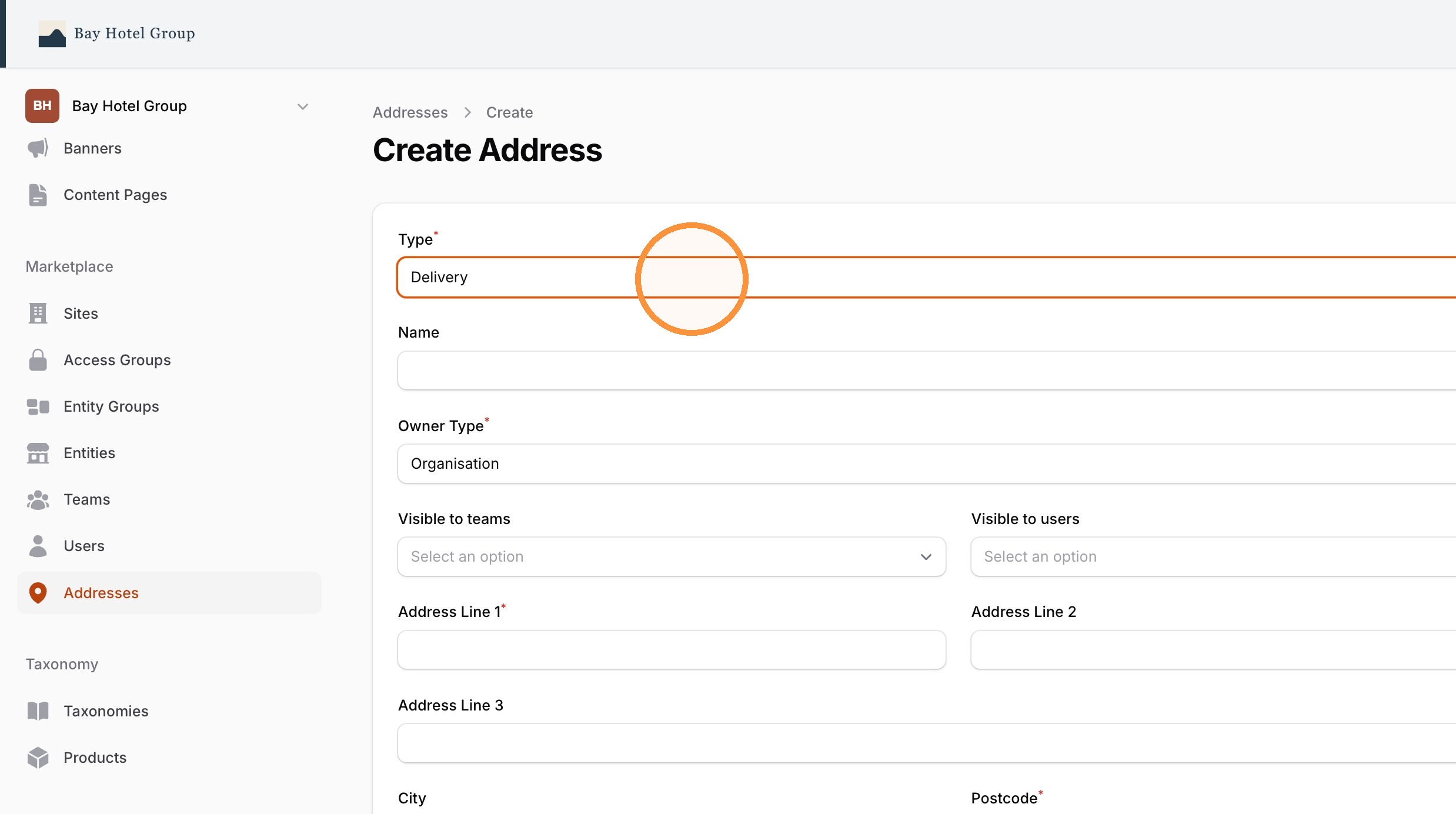
Delivery. Can only be used as the delivery address at checkout. Delivery addresses can also be scoped and have delivery specific settings, covered below.
Billing. Can only be used as the billing address at checkout.
Postal. Migrated as part of the system upgrade. Postal addresses should not be used when setting up new accounts.
Delivery addresses can be scoped to an Organisation, a Site or an Entity. The scope controls how widely the address is available:
An Organisation scoped address is available across the whole Organisation.
A Site scoped address is available within that Site.
An Entity scoped address is available for that Entity.
Choose the narrowest scope that still covers where the address needs to be used. This keeps the list of available addresses relevant to each user rather than cluttered with addresses that do not apply to them.
How a user works with delivery addresses at checkout depends on their Team's permissions. A Team can be set to one of three options:
Pre-set address for their Team. The delivery address is fixed for the Team. This is usually used when a Team has a single delivery address, for example one address for their location.
Select from a predefined list. The user chooses from a list of set addresses. This is usually used when there are multiple addresses across the Entities the Team has access to.
Manually edit the address. The user can enter or change the delivery address themselves. This is used when the delivery location varies, for example delivering to a customer or another one off destination. It is not recommended for standard users, because it removes the control that predefined addresses provide.
(Part of Team settings) Set this permission based on how predictable a Team's delivery destinations are. The more fixed the destination, the more you should lean towards a pre-set or predefined list rather than manual entry. For more detail, see the Delivery address permissions guide.
A delivery address can be flagged as rural or not rural. This flag is predefined on the address and is used when calculating freight costs on Sites that price freight this way.
Because it affects freight charges, set the rural flag correctly when you create or edit a delivery address. [CONFIRM: which Sites use the rural flag for freight and how the flag is applied]
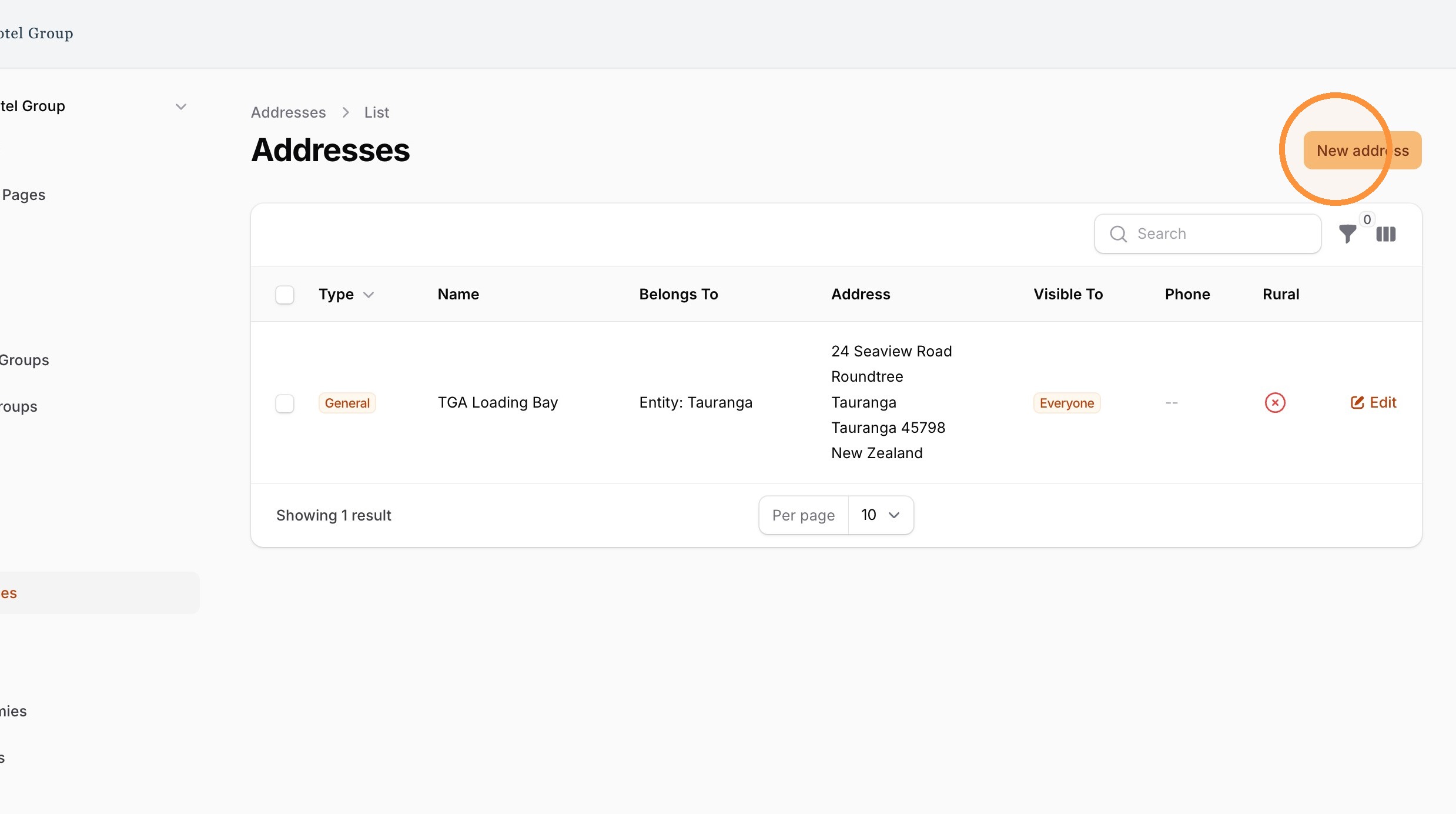
1. Select "New Address".
2. Select the Type and Enter the Address details
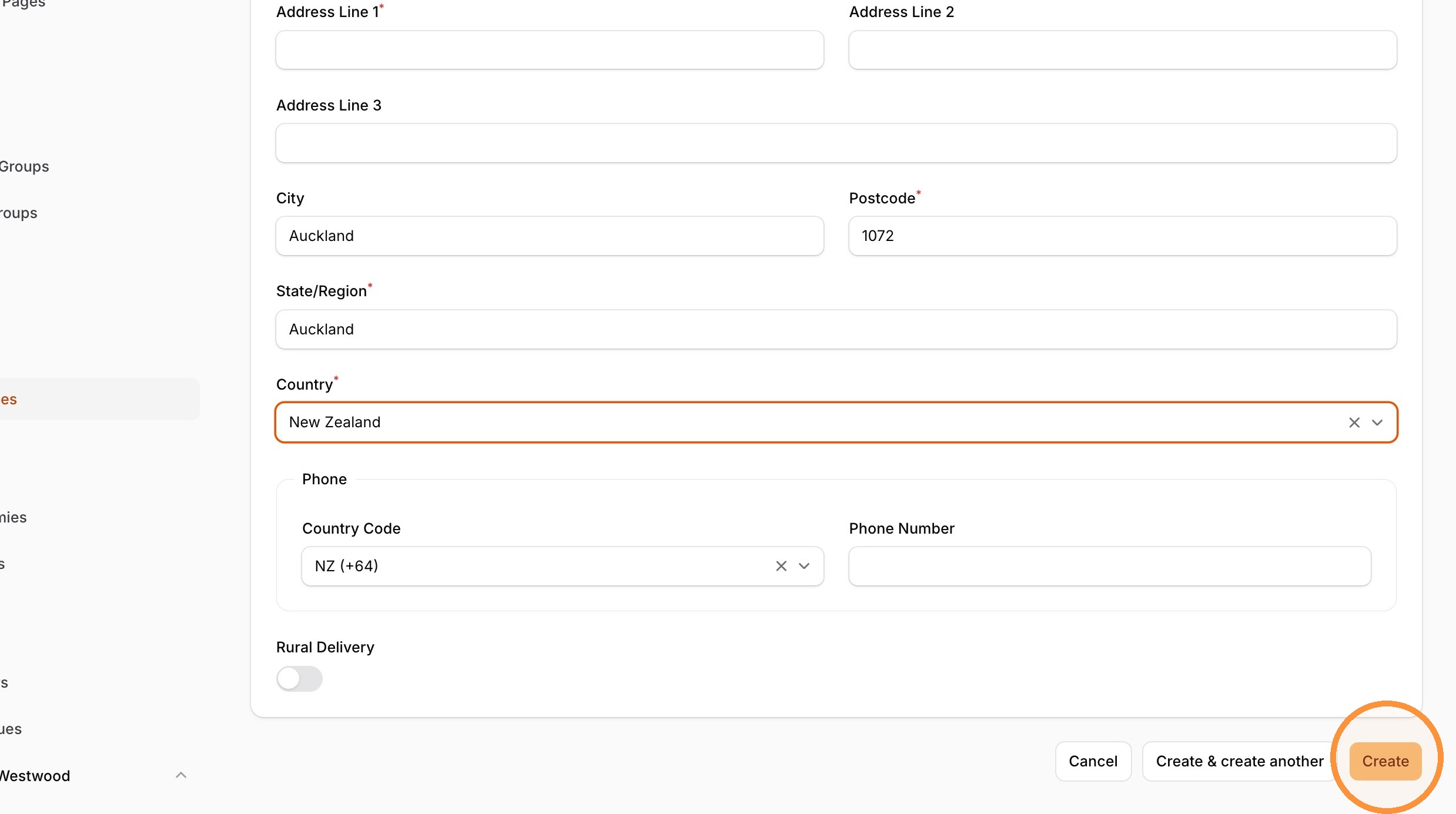
3. Click "Create"