The administrative area is where an Eversource procurement solution is set up and managed. It controls who your users are, what they can see and buy, how orders and invoices are approved, and how the marketplace is organised.
This page is an overview. It explains the main building blocks and how they fit together so that internal team members and customer administrators can understand a setup at a glance and self-serve with confidence. Each concept below has its own detailed guide that covers the day-to-day tasks in full.
Throughout this page we use our demo customer, Bay Hotel Group, for examples.
Most of the administrative area falls into two connected structures.
Who can do what. An Organisation contains one or more Sites. Each Site is split into Entities (and optionally Entity Groups), which are the locations or merchants you operate. Teams connect your Users to those Entities and grant them Roles (what they can do) and Approval Rules (what needs signing off).
What can be purchased. A Taxonomy organises the Products available in the marketplace, and your approved Suppliers provide those Products.
Addresses support both structures, and Observability and Configuration sit underneath everything as technical settings managed by Eversource.
The Organisation is the customer as a whole, and it sits at the very top of the structure. Everything else is set up beneath it. In our demo site the Organisation is Bay Hotel Group. In most cases a customer has a single Organisation.
From here, when explaining each section of the admin, a screenshot will be provided to support your understanding.
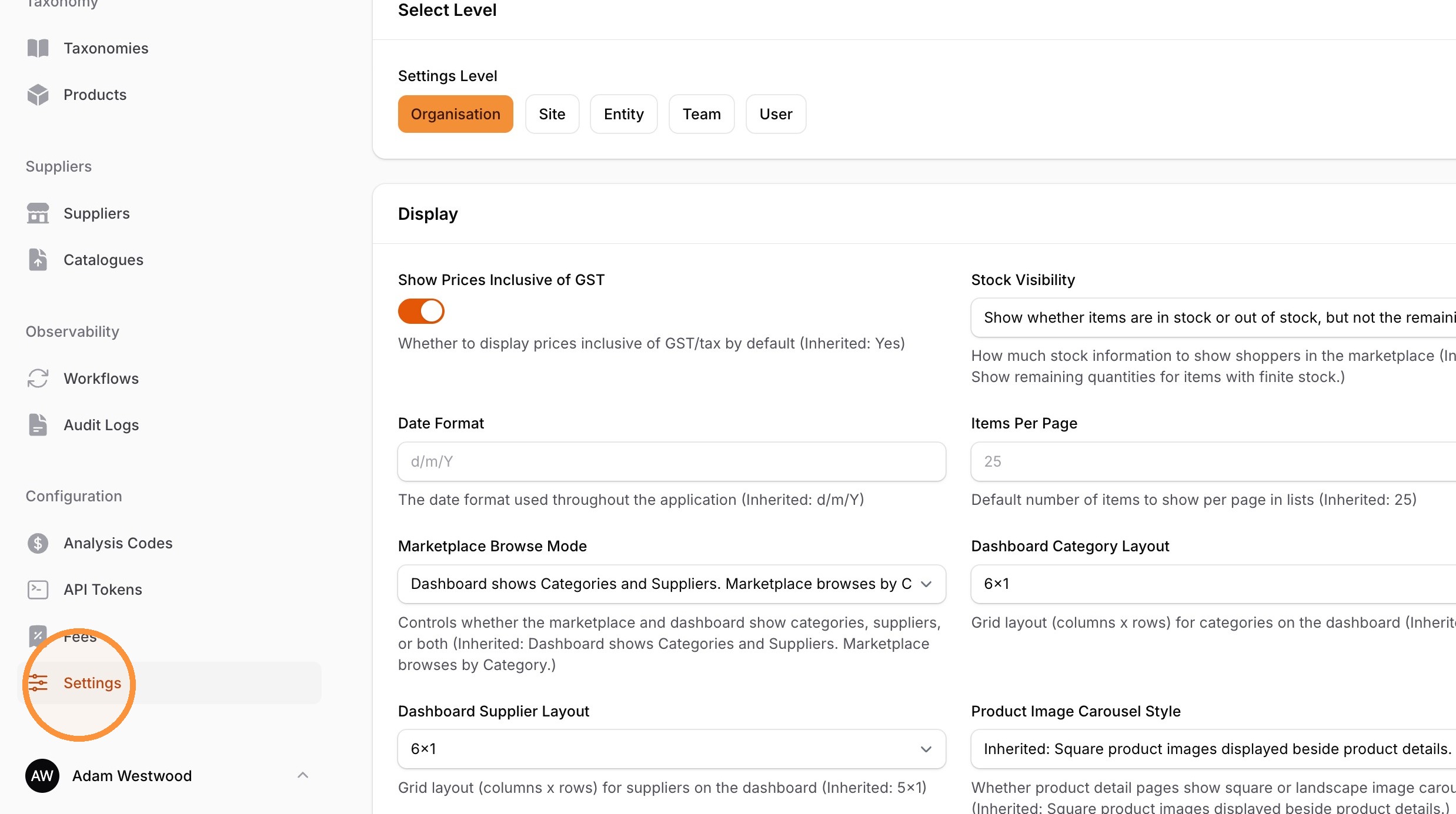
From the Eversource Marketplace profile in the bottom left, Click "Admin"
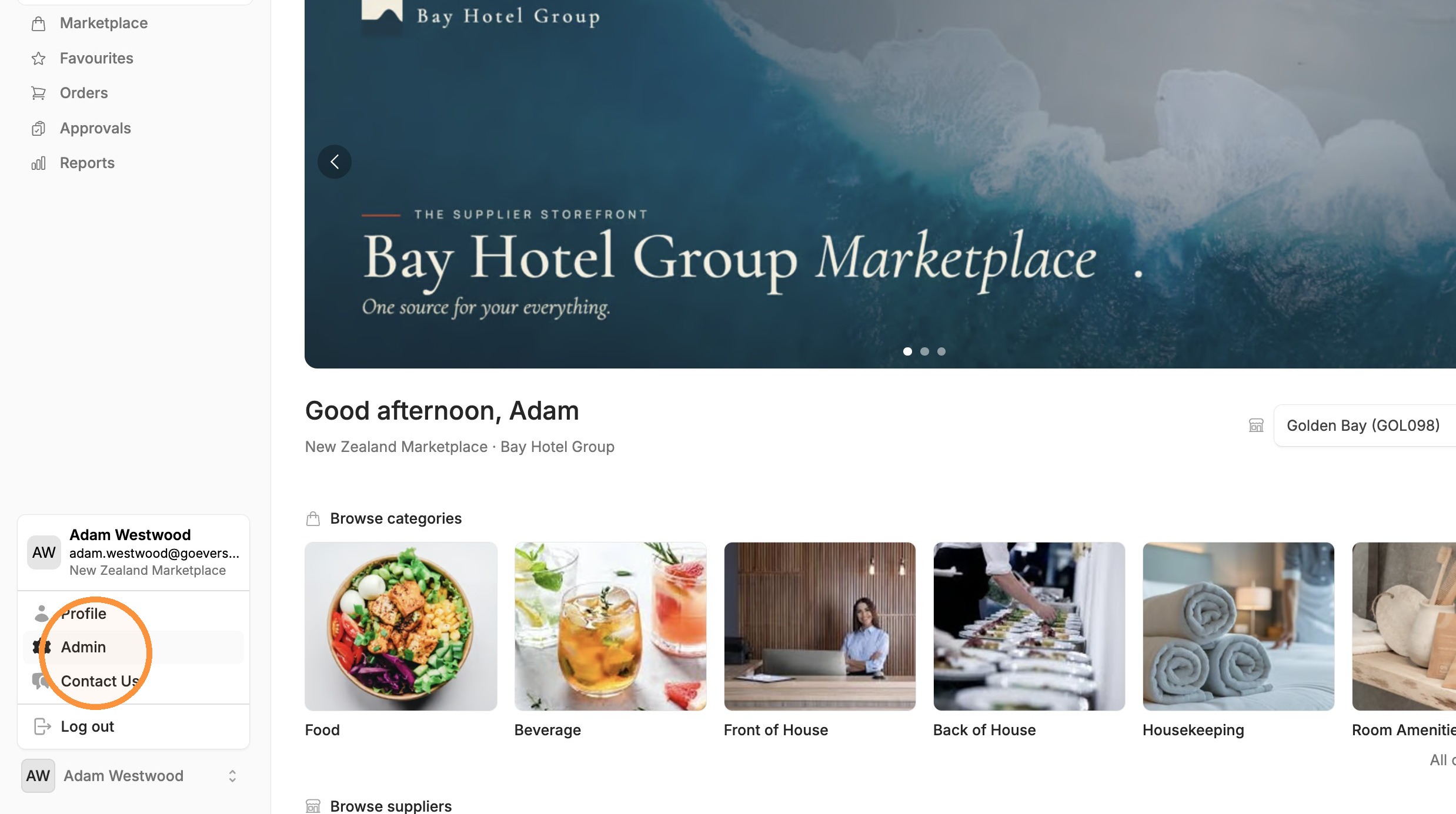
A Site is an individual instance under an Organisation. A Default site will be created when setup. Multiple Sites are usually created where a customer operates different brands or across multiple countries or currencies, so that each one can be managed separately.
For Bay Hotel Group, that means an Australia Site and a New Zealand Site beneath the one Organisation. Keeping them as separate Sites lets you manage each region's catalogue, suppliers, users and settings independently.
Navigate to Sites
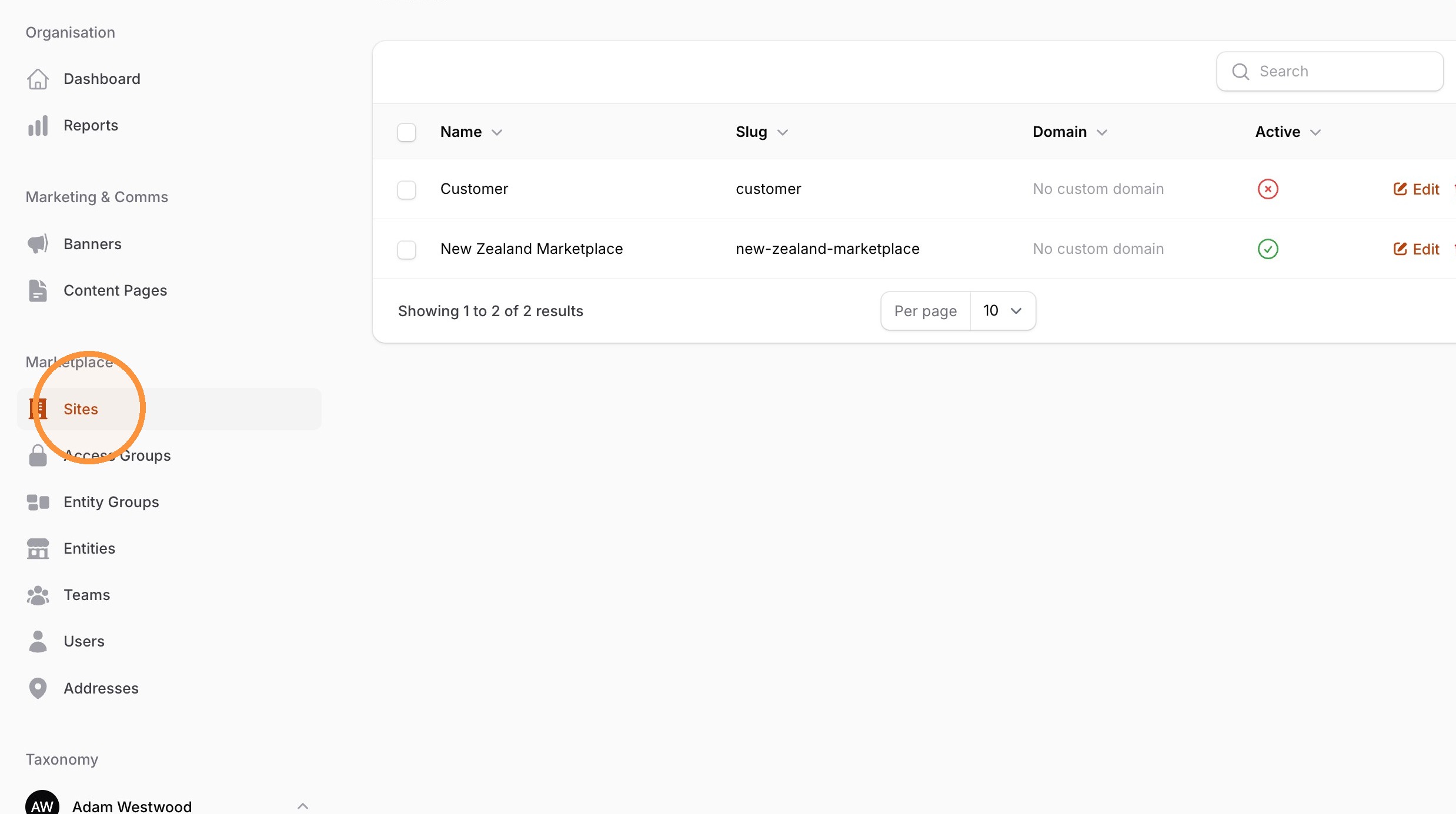
Access Groups are setup when specific Teams need access to part of a taxonomy. This was required to update customers from an older version of Eversource, we recommend avoiding using these to avoid complicated site configurations.
Navigate to Access Groups
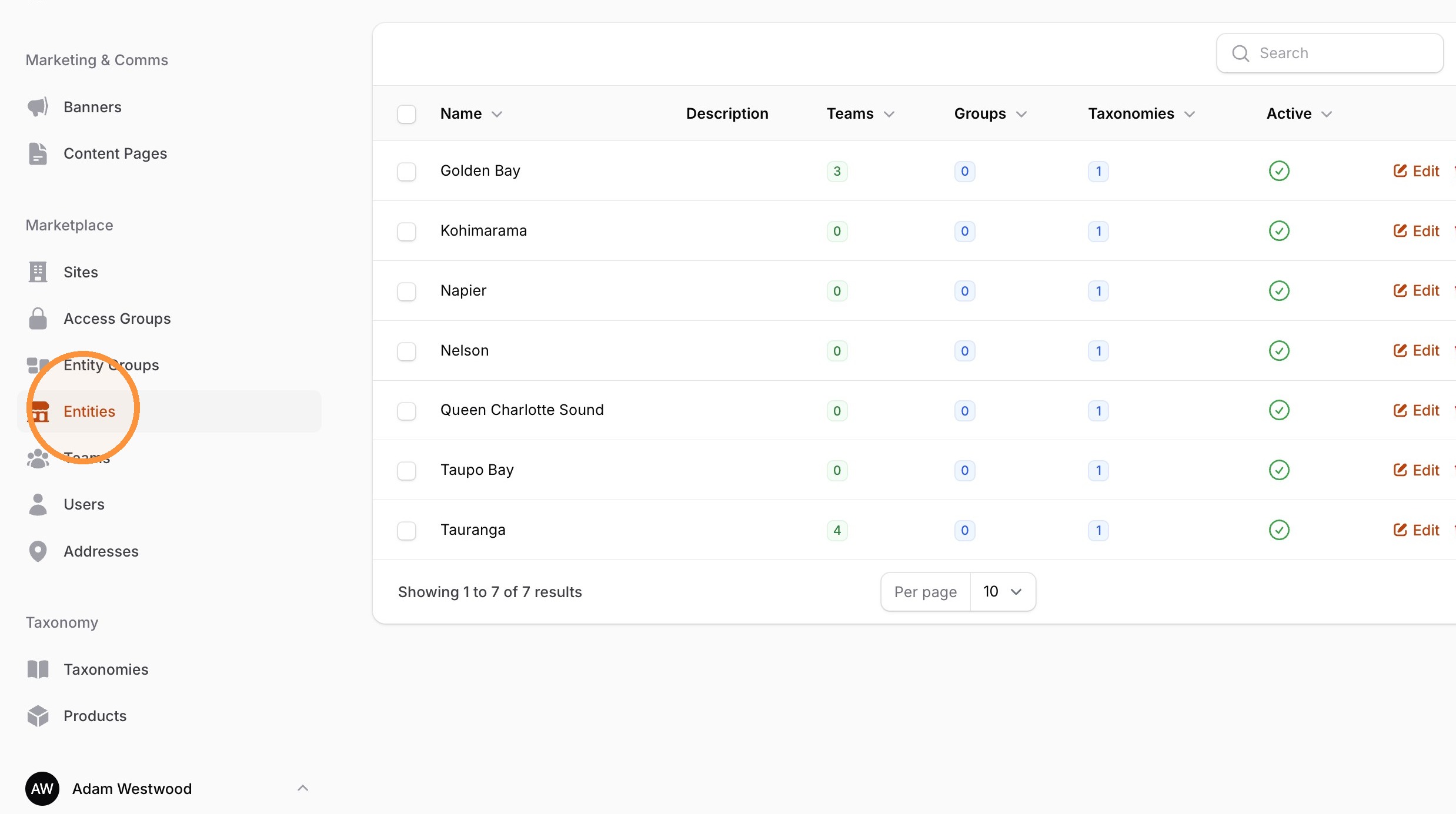
Entities are the basic unit a site is divided into. It is the thing that catalogue, pricing, user access and permissions are all attached to.For most customers, this will be locations or franchisees. For a hotel group, these are the individual hotel locations. For a restaurant network they are the individual restaurants. Entities can also represent your own customers, or any other split you need to divide the marketplace into.
Entities do a lot of work in a setup. They are used to control catalogue pricing, user access and permissions, so an Entity effectively determines what a given user sees and what they pay.
Navigate to Entities
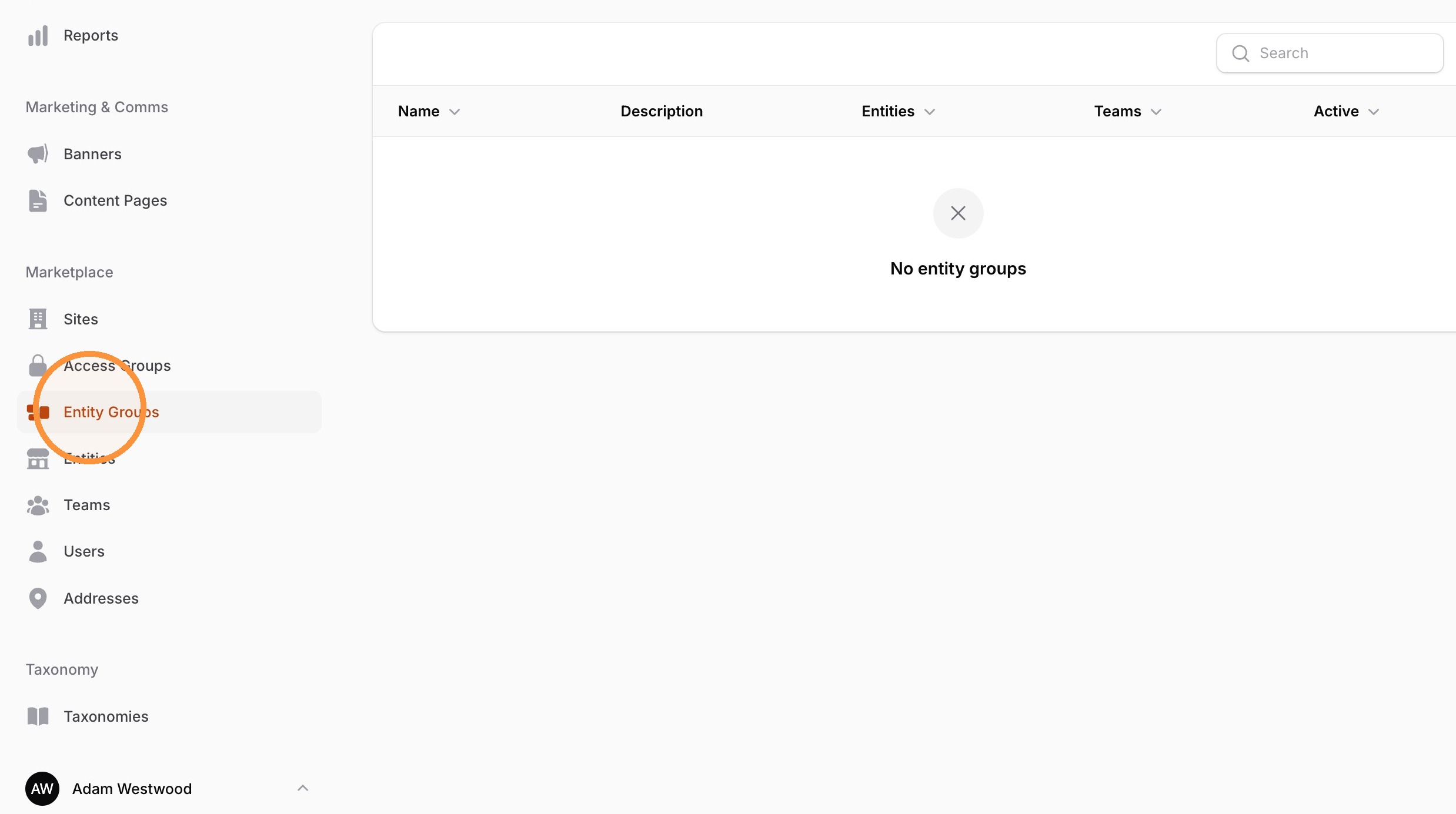
Entity Groups are groups of Entities, used to set up larger organisations so that access is easier to manage. For example, an Entity Group called "NSW, Australia" might contain every Entity in that region.
Their main benefit is granting Teams access to many Entities at once, rather than adding Entities one at a time.
Navigate to Entity Groups
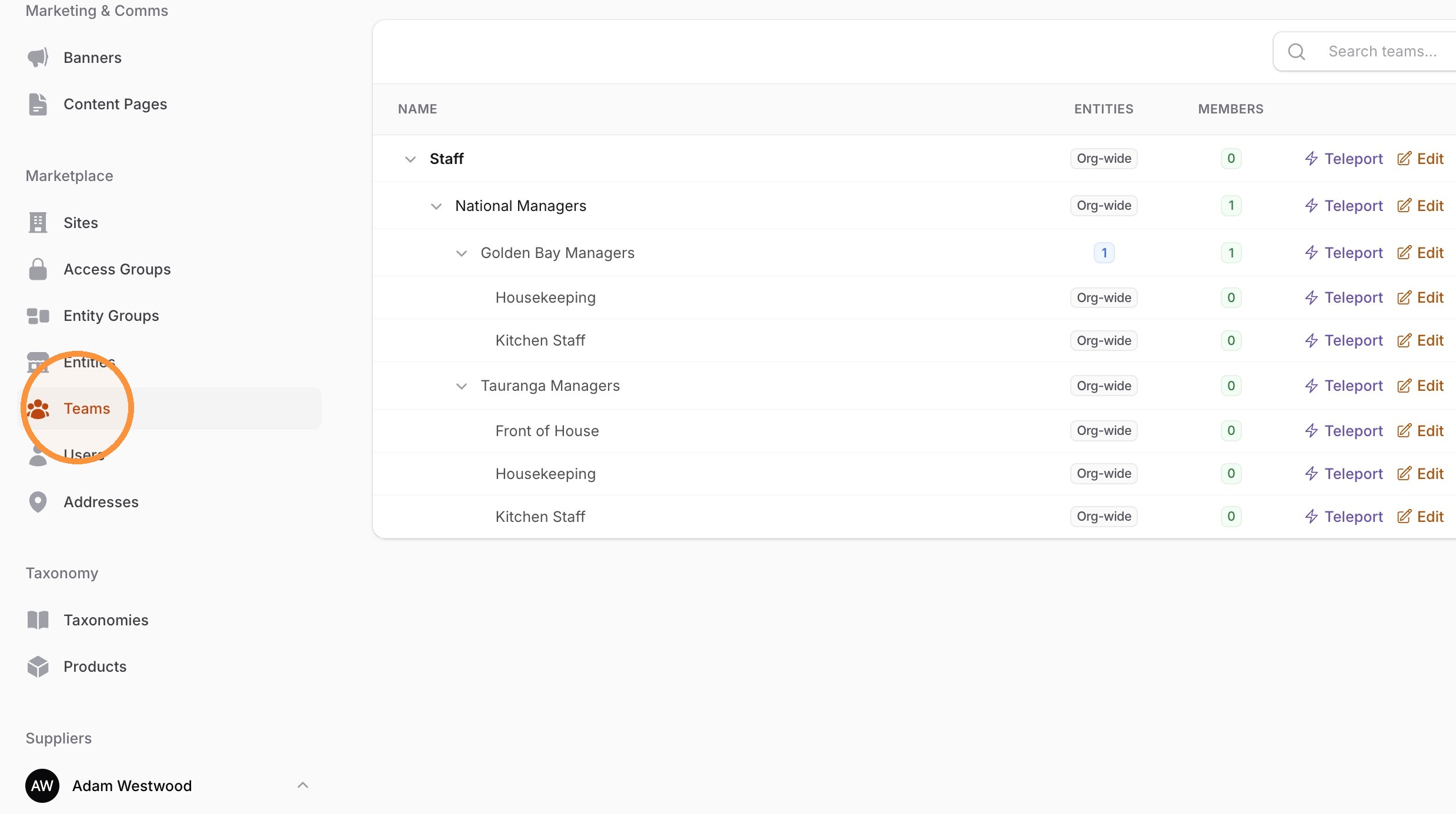
Teams are groups of users. Each Team is set up with three things:
Access to one or more Entities and Sites
Access to specific Eversource features.
Permissions to perform specific actions.
Because users are assigned to Teams rather than directly to Entities, a user can belong to more than one Team and Multiple Entities. This is how you give someone access to multiple Entities, or extra permissions, when they need it.
For Bay Hotel Group, each location has an Admin Team, a Kitchen Team, a Front of House Team and a Management Team. When a new Site is created, it starts with a default Staff Team and Admin Team.
We recommend keeping Teams as simple as possible. Simple Teams are easier to understand, easier to audit, and less likely to cause access or approval surprises later.
Teams are set up in a hierarchy, with each lower Team assigned a Parent Team. This hierarchy drives approvals: an approval travels up the hierarchy, Team by Team, until the approval rules have been satisfied. Getting the hierarchy right is therefore key to how approvals flow.
Navigate to Teams
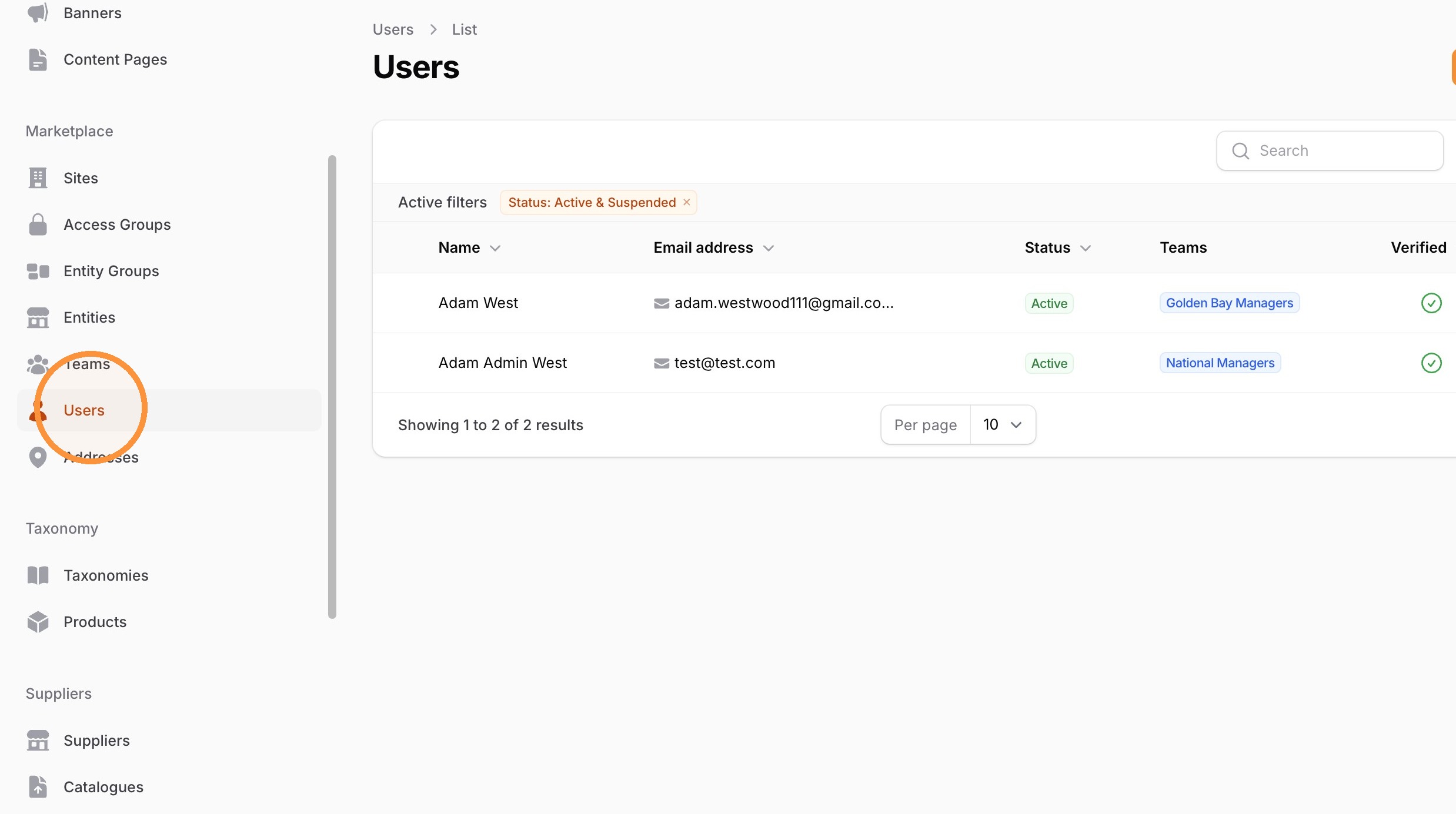
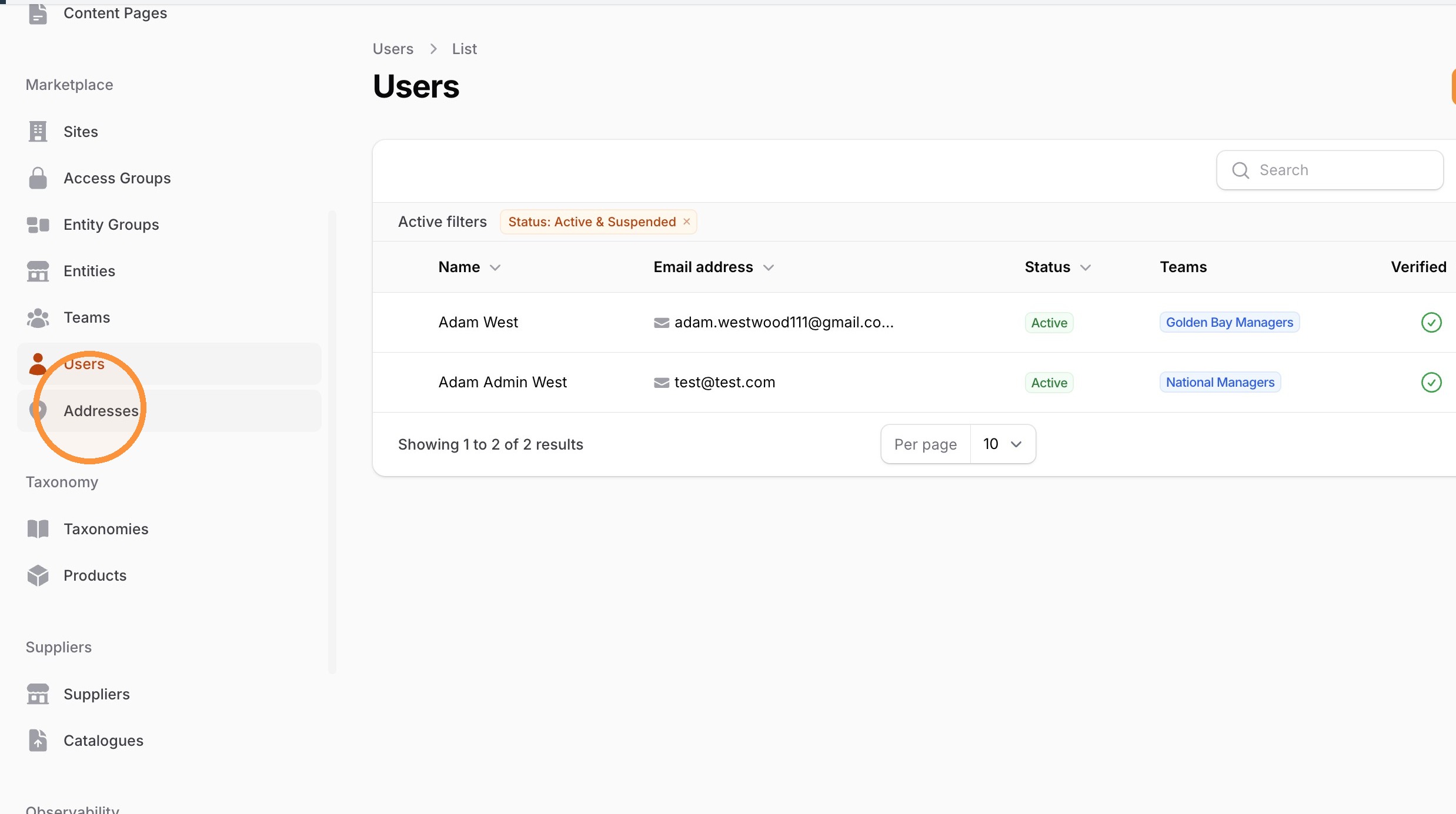
Users are the individual people who log in to Eversource. Each user has their own email address and password.
A user must be assigned to at least one Team to be active. Until then, they cannot work in Eversource. Assigning and removing users from Teams is how you control access over time.
We recommend each person has their own account, visibility of orders, invoices or other information can be managed by the Team they are part of.
Navigate to Users
Navigate to Addresses
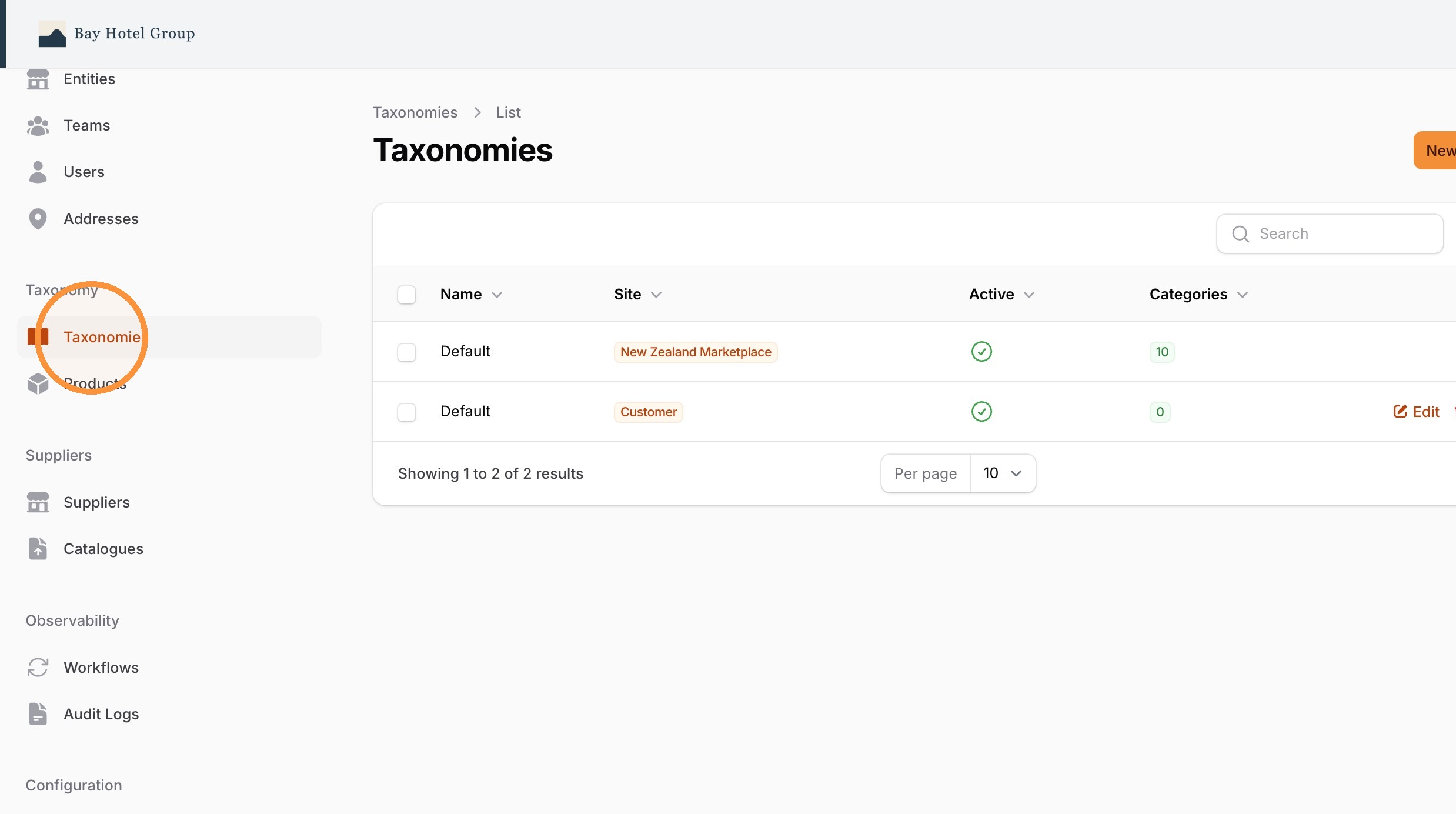
The Taxonomy is a Site's category structure. It is what users browse to find products in the marketplace.
Some Sites have more than one Taxonomy, so that different parts of the business see a structure that suits them. For example, Head Office may need very different categories and products from the ones the hotel Teams work with.
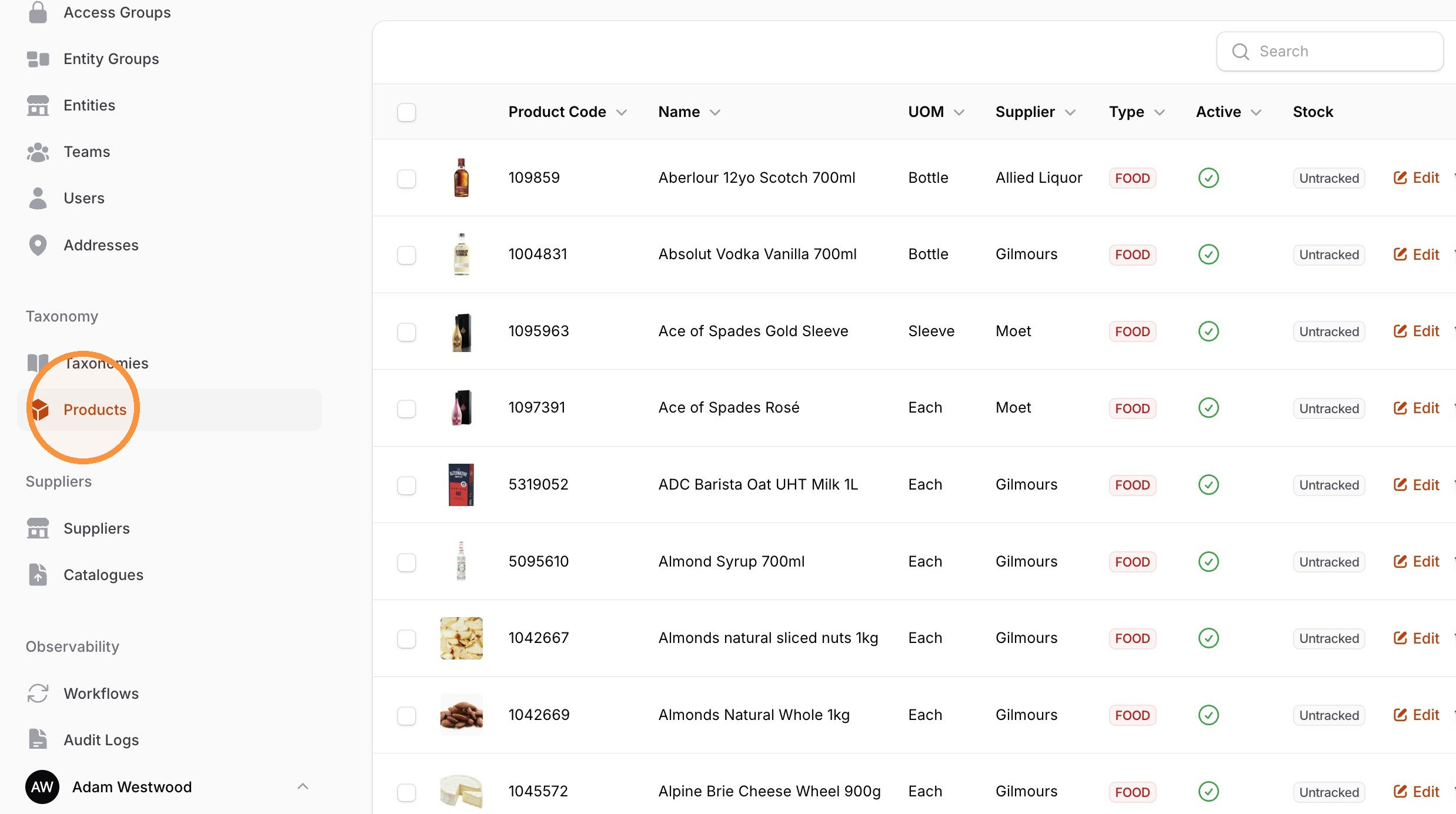
Products are the specific physical items available in the marketplace. They are provided by your Suppliers and organised for browsing by the Taxonomy. These products will include the various physical product types across inventory, made-to-order, editable templates and loan items.
Navigate to Products
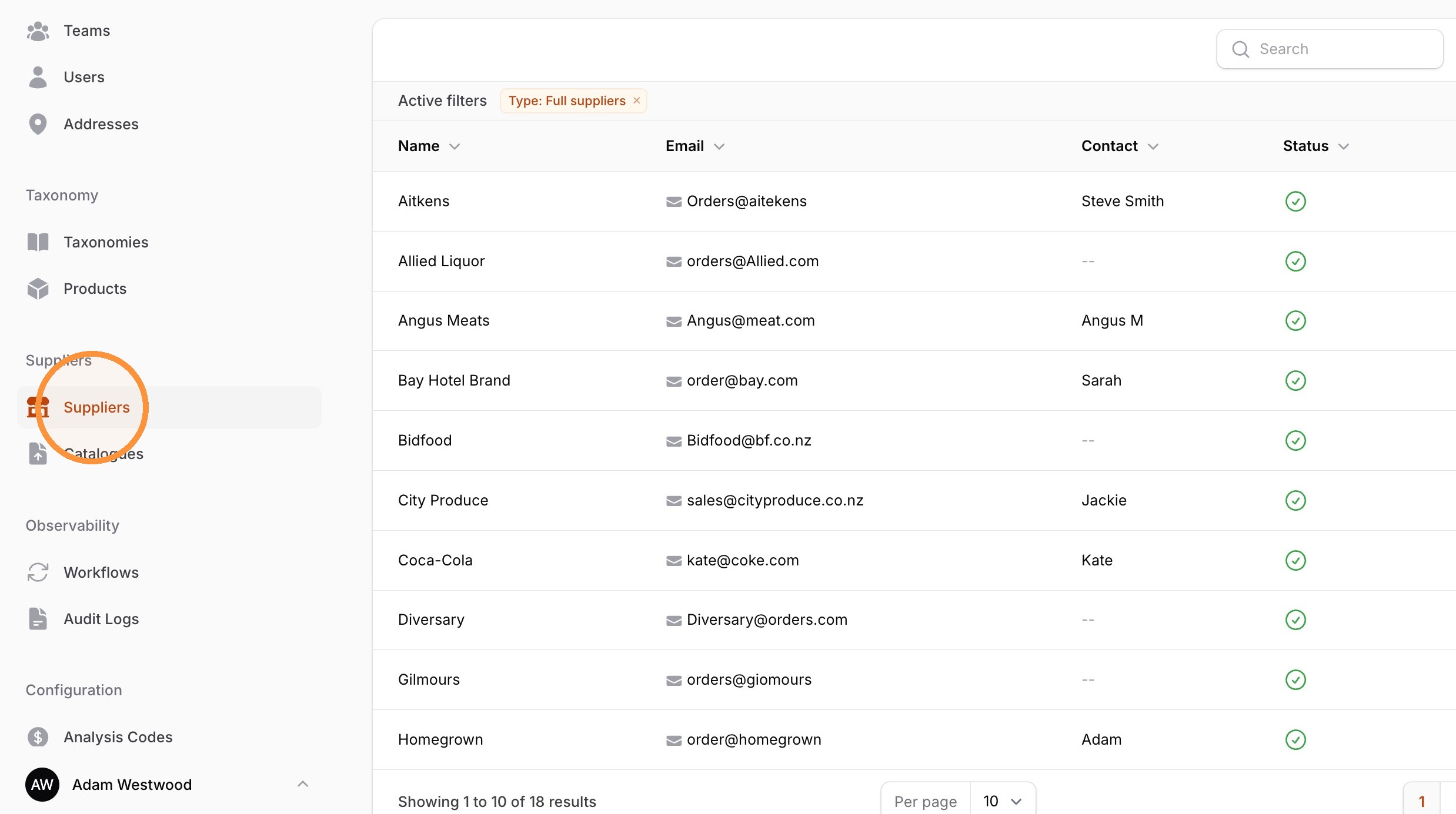
Suppliers are the businesses approved to supply an organisation. Their catalogues are brought into Eversource in one of two ways: imported through a technical integration, or managed manually within Eversource.
Navigate to Suppliers
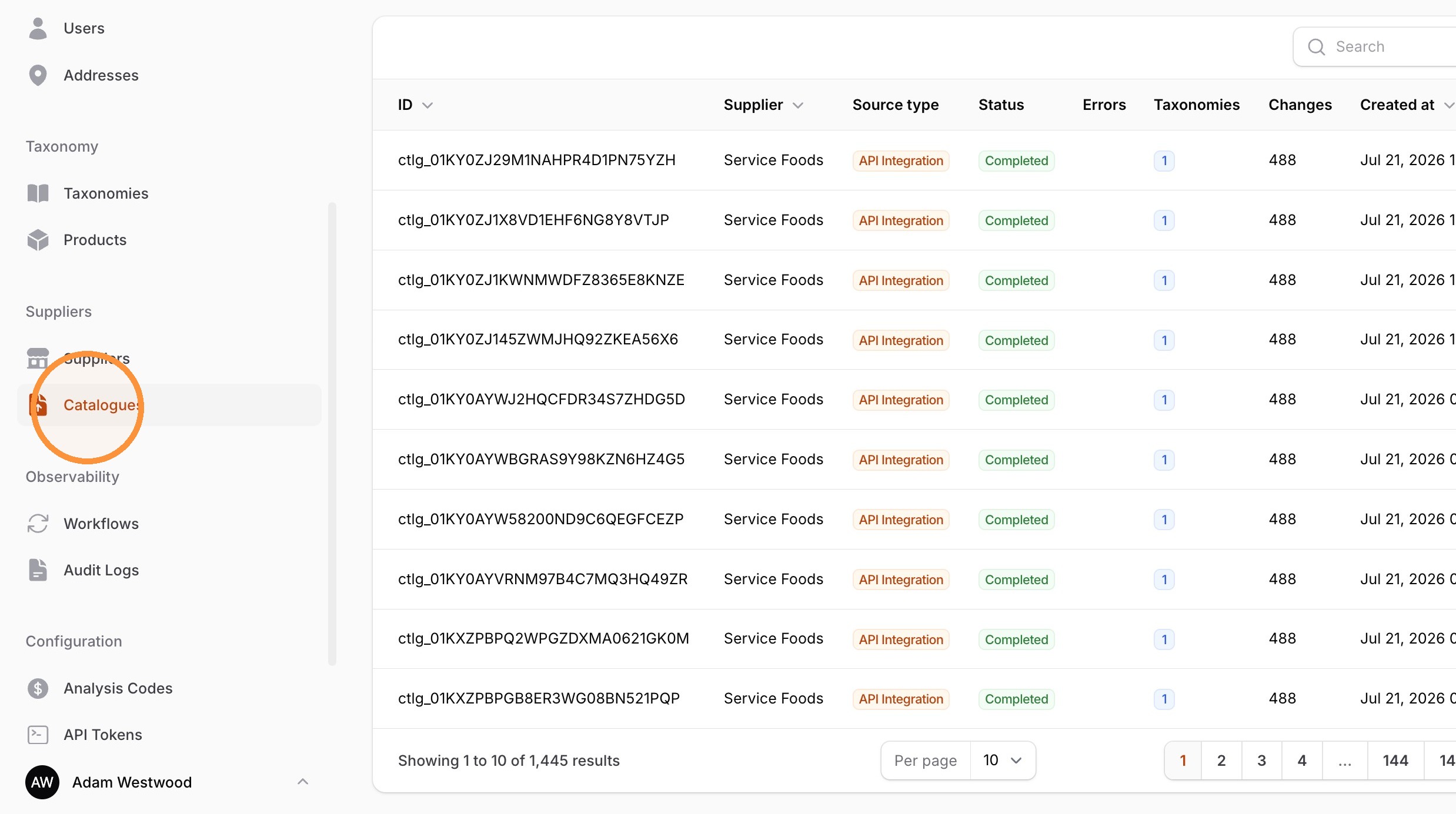
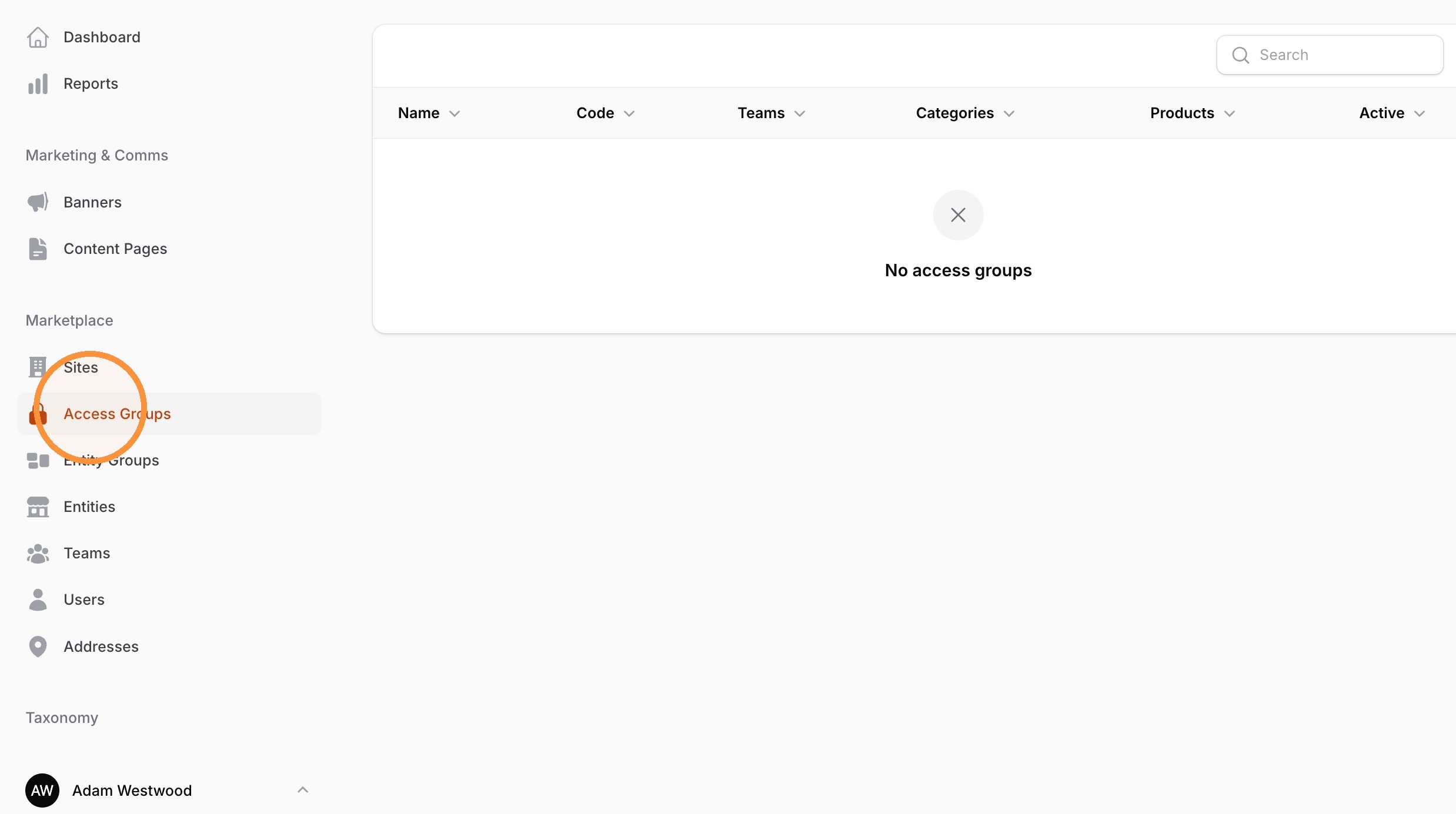
Observability and Settings are technical areas that should be managed by your Eversource team. This helps us easily support your organisations marketplace.
Navigate to Settings